Introduction
On this page
Artemis brings your effects pedals and built-in digital effects together in one pedalboard system. You can arrange your signal path, create presets, and recall sounds as you play. This introduction takes you through the startup screen, connecting to Wi-Fi, checking for updates, and opening Houston, the main application.
Launchpad Basics
When you switch on Artemis, it opens Launchpad. This is where you manage device settings, including Wi-Fi, software updates and storage, and launch applications.
Houston is the main application for setting up your pedalboard, working with effects and managing presets. You can open it from the Apps tab in Launchpad.
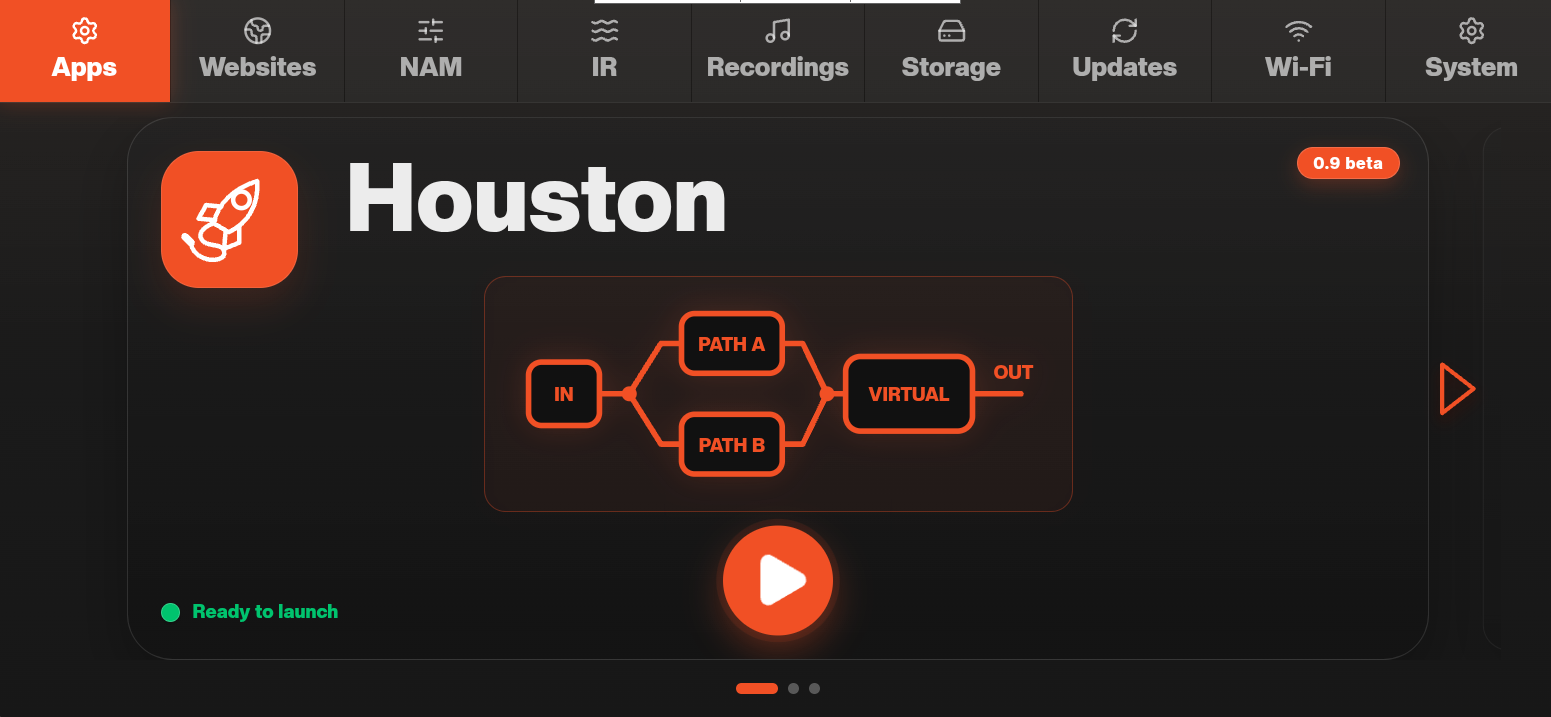 Launchpad Apps tab showing Houston ready to launch
Connecting to Wi-Fi
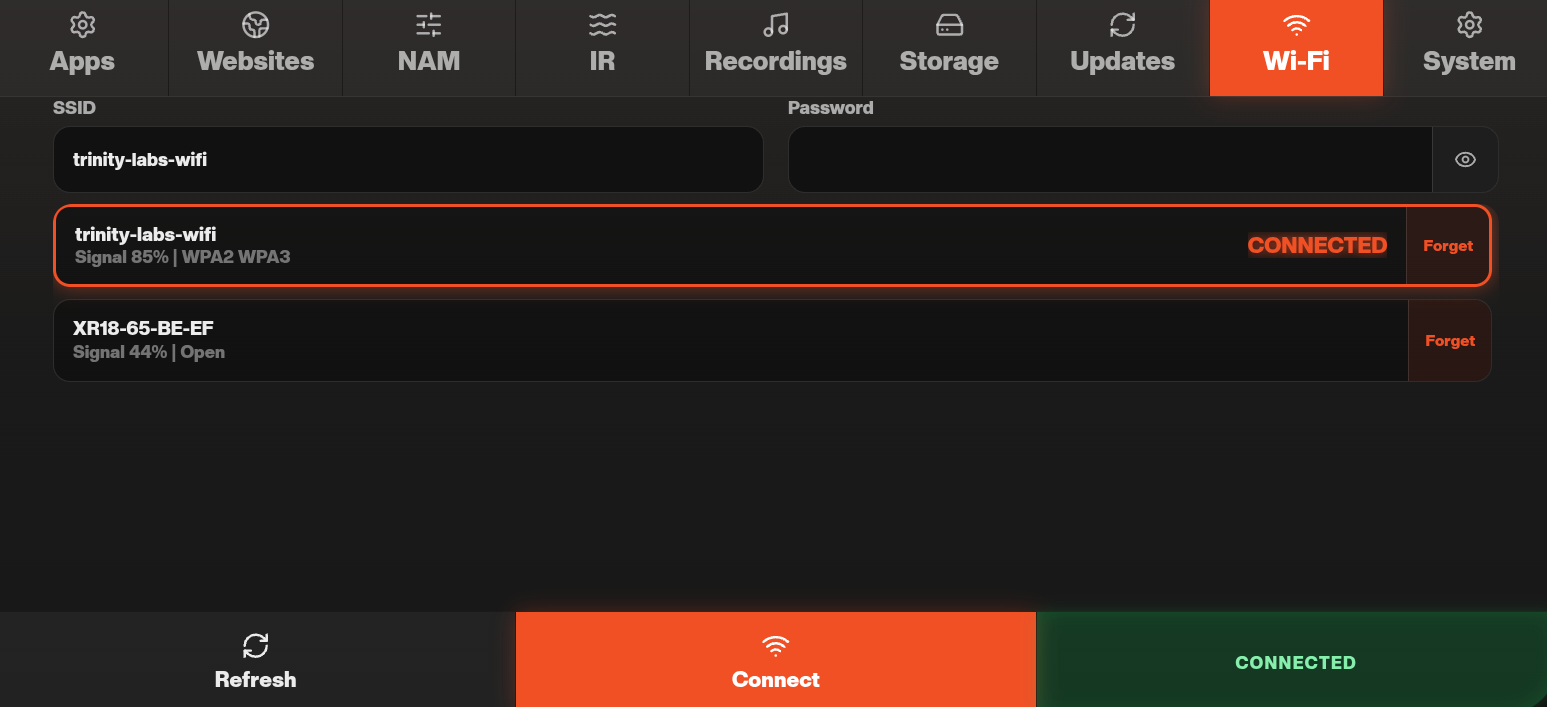
For your first setup, we recommend connecting Artemis to a Wi-Fi network. This makes it easy to download software updates and browse Neural Amp Modeler (NAM) models, which recreate the sound of amplifiers and pedals.
Open the Wi-Fi tab in Launchpad and connect to your network.
Artemis Software Updates
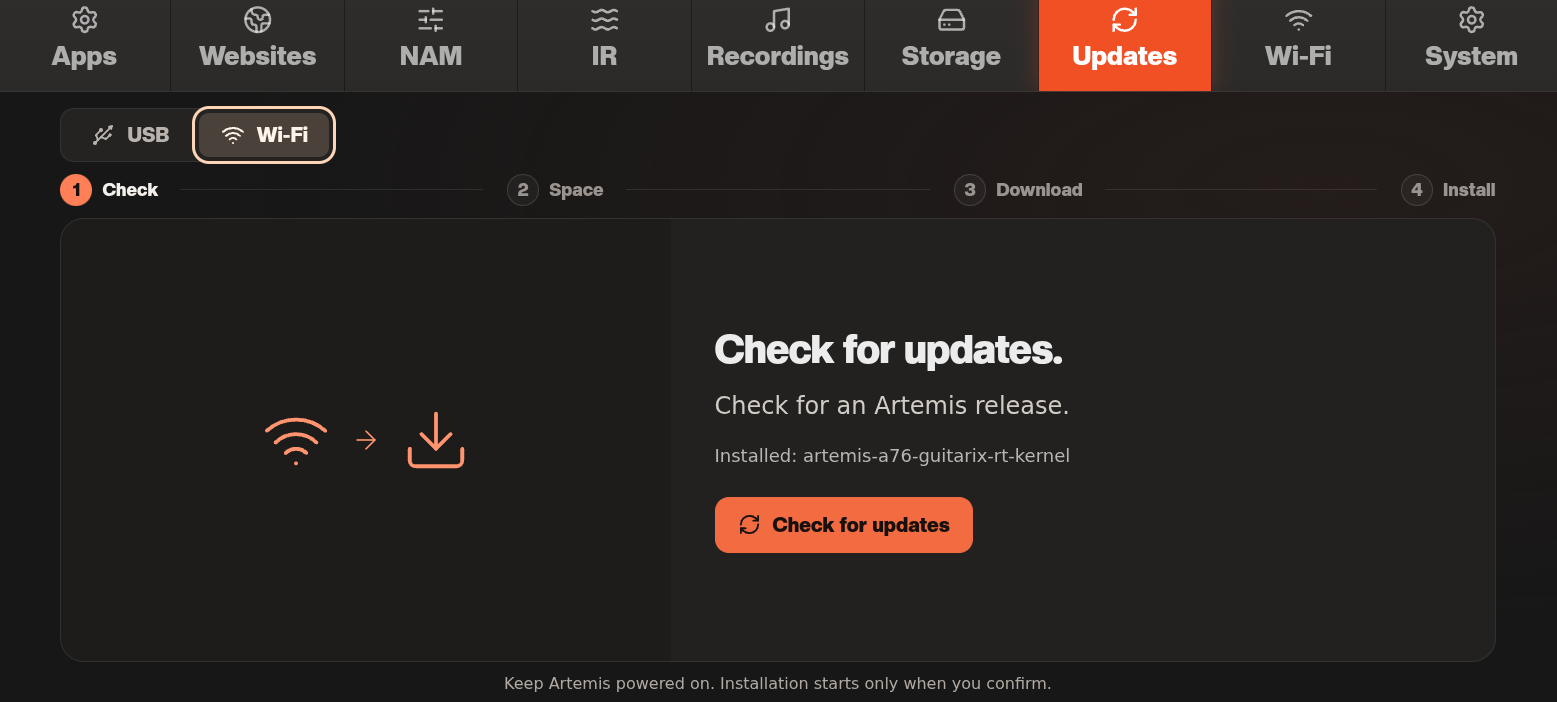
Once connected, we recommend checking for software updates so you have the latest features and effects. Follow the Wi-Fi instructions below, or see USB Updates in Maintenance and Troubleshooting to transfer an update from your computer.
Wi-Fi Updates
- Connect Artemis to a Wi-Fi network.
- Open the Updates tab in Launchpad and select Wi-Fi.
- Follow the guided wizard to download and install the update. If prompted, delete a previously cached update bundle to make space. This cached bundle is safe to delete.
- When installation is complete, reboot Artemis when prompted. Complete the matching firmware update if Launchpad requests it, following any further restart prompts.